
Reading out and exporting drive parameters with AIPEX PRO
Various AIPEX PRO projects containing the data for various combinations of AMK compact inverters and motors are supplied with the installation data.
The data are configured so that each of these projects can be used together with the file 'Motoren.txt' for the simulation. The corresponding *.xml file must be generated for the desired project.
- Launch AIPEX PRO
- Open the desired project
- Proceed from step 3 (see below)
In order to simulate a real drive, you need to read out the drive parameters from a drive and export them to an *.xml file using the AMK PC software AIPEX PRO
- Connect the PC with the USB port of the controller card, for example.
-
Log in to the device with AIPEX PRO
- Display all parameters for the drive.
To do this, click the header of the parameter list, select 'All parameters' and 'Display system internal parameters' and confirm with 'OK'.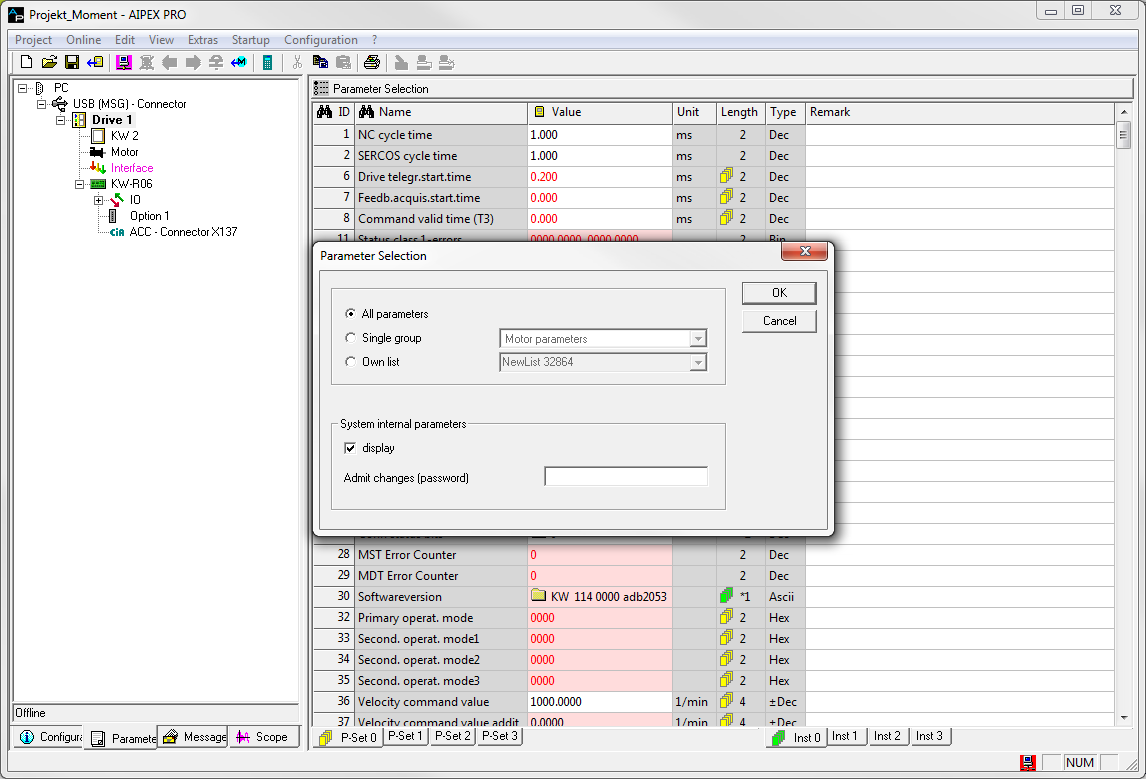
- The following parameters must be checked and if necessary set in the parameter list:
- ID32800 'AMK main operating mode':
In bit 16 - 23, 0x3C or 0x41 must be set as the setpoint source (cyclical setpoints). If this is not done, the inputs of the SimKW block will not be effective as setpoints. - ID32953 'Encoder type':
The following encoder types are permissible as motor encoders for the simulation:- incremental encoder
I-encoder
E- / F-encoder
P- / Q-encoder
S- / T-encoder
square-wave pulse encoder
- Resolver
- incremental encoder
- ID34071 'System name':
The device name cannot be edited directly in the parameter editor, but only in the device tree.
Change the name there (e.g. 'Drive 1' => 'Drive_1') for this change to be adopted in ID34071. This device name will later be assigned to the corresponding function block ‘SimKW.’
- ID32800 'AMK main operating mode':
- Right-click the header of the parameter list to open the context menu with the function ‘Export data set...’
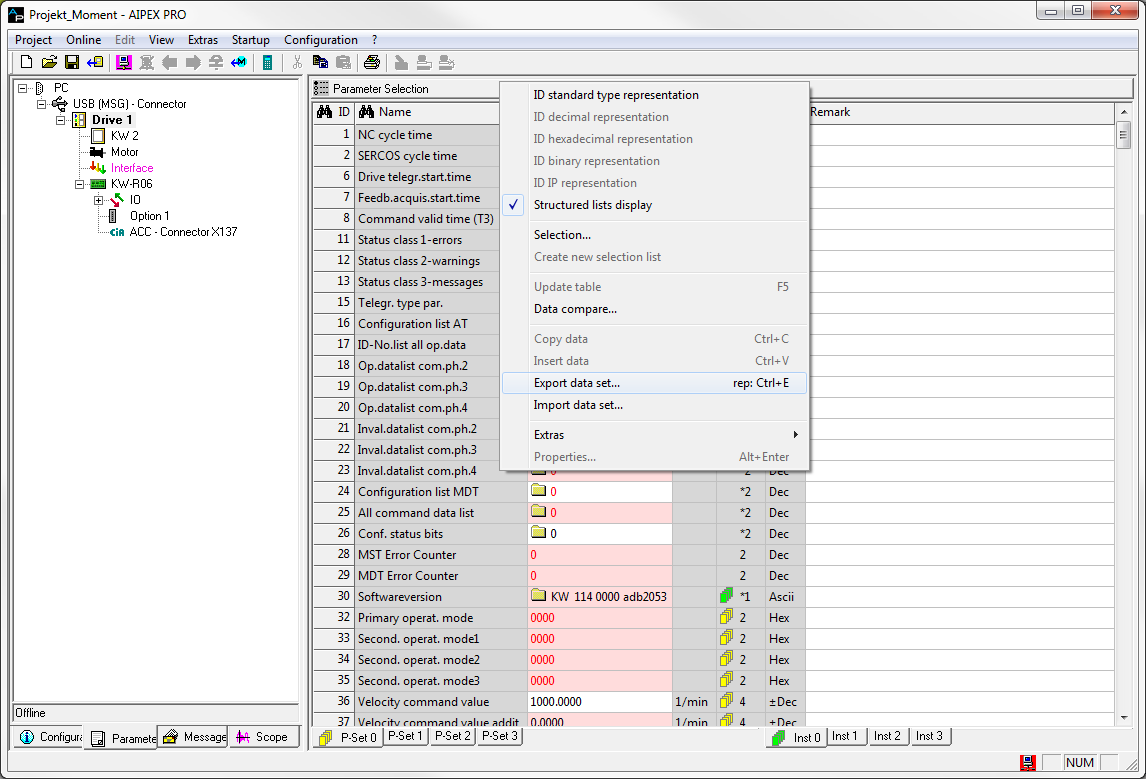

Make sure you have selected the correct parameter set (P set 0 ... P set 3) while exporting the project. Only this parameter set will be exported.
The parameter set number is saved in the export file and must match the number entered later in the function block.
- Save the file in the selected simulation folder (e. g. 'DriveSim').
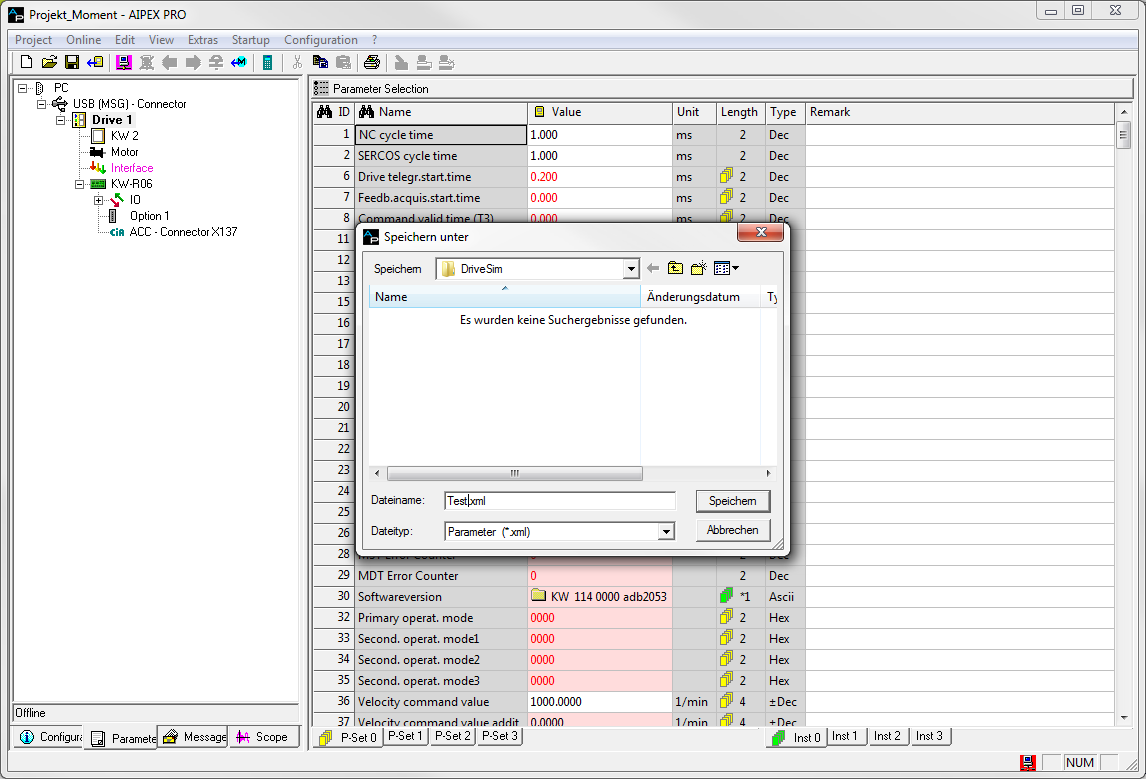
To export the complete parameter list, proceed by right-clicking in the header of the parameter list as described above (see step 4).
Write-protected and formal parameters are not saved under the menu item ‘Project’ ->’Export data set ...’!
- For further information on working with the PC software AIPEX PRO, see:
See document
